Deployed at home and confirmed with real remote sessions over a cellular hotspot, now streaming with Moonlight by default. Security hardening is done; a full write-up is still in progress.
Pi-Tether
A self-hosted remote-access setup built on a Raspberry Pi. WireGuard and DuckDNS turn the home network into a private tunnel a MacBook can join from anywhere, to stream a Windows desktop with Sunshine and Moonlight (Remote Desktop stays as the fallback) and reach its localhost dev servers. Built to replace Tailscale or a rented VPS with something owned outright, at the cost of doing the networking and the ongoing maintenance by hand.
Planning, hardware build, WireGuard and DNS configuration, and end-to-end testing.
Self-hosted networking, WireGuard VPN internals, and the trade-offs of DIY infrastructure versus a managed service.
Project Overview
Purpose: Give a MacBook a private tunnel into the home network from anywhere, so it can stream a Windows desktop and reach its localhost dev servers, with no files carried back and forth.
Problem: Commercial options solve this instantly. Tailscale is free for personal use and a small VPS runs a few dollars a month. Neither one is free forever, and neither one teaches how the tunnel actually works.
Approach: Self-host the WireGuard server on a Raspberry Pi already living on the home network, paying about $174 once instead of a subscription, and treating the build itself as a hands-on networking project.
Hardware
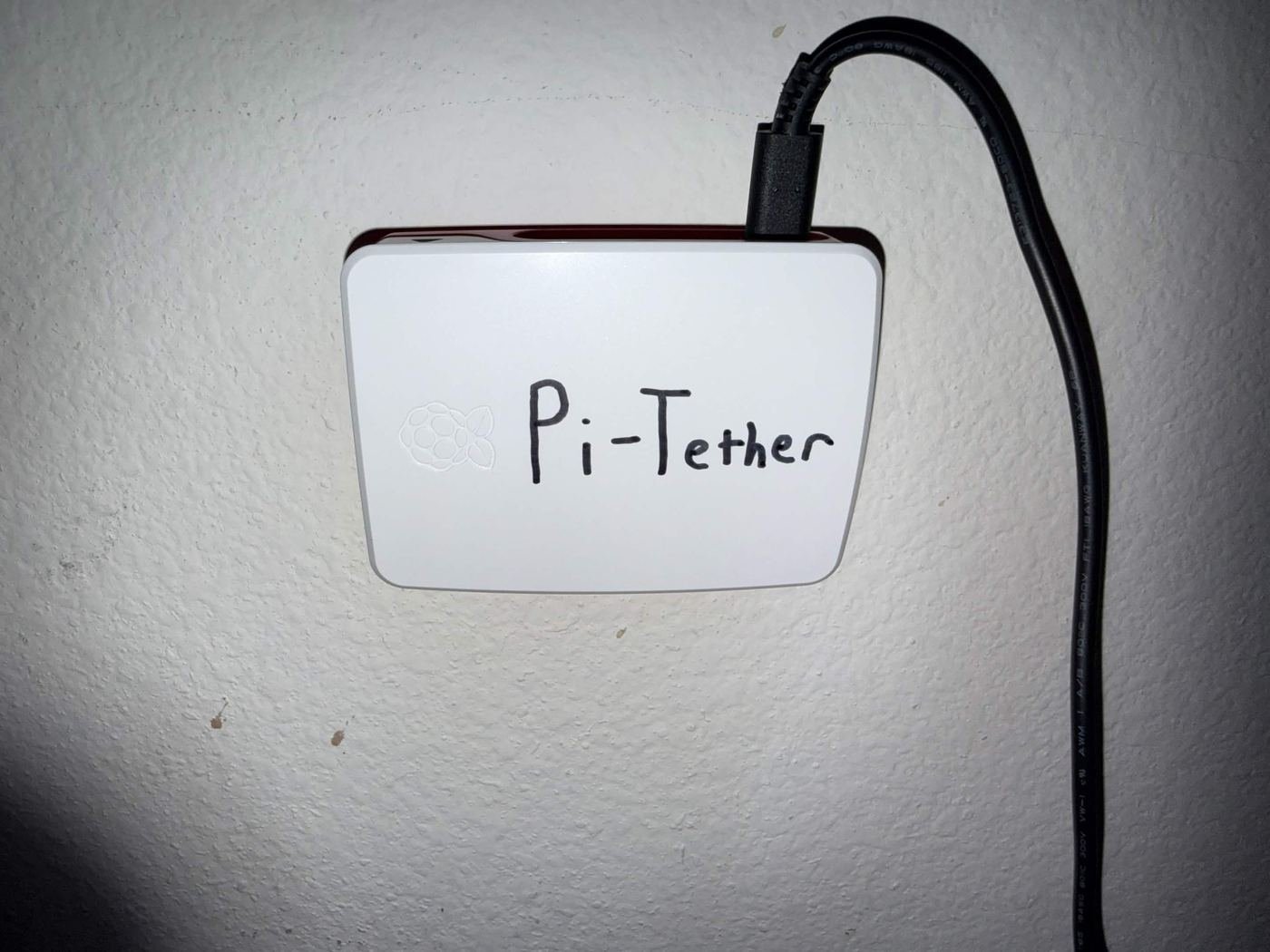
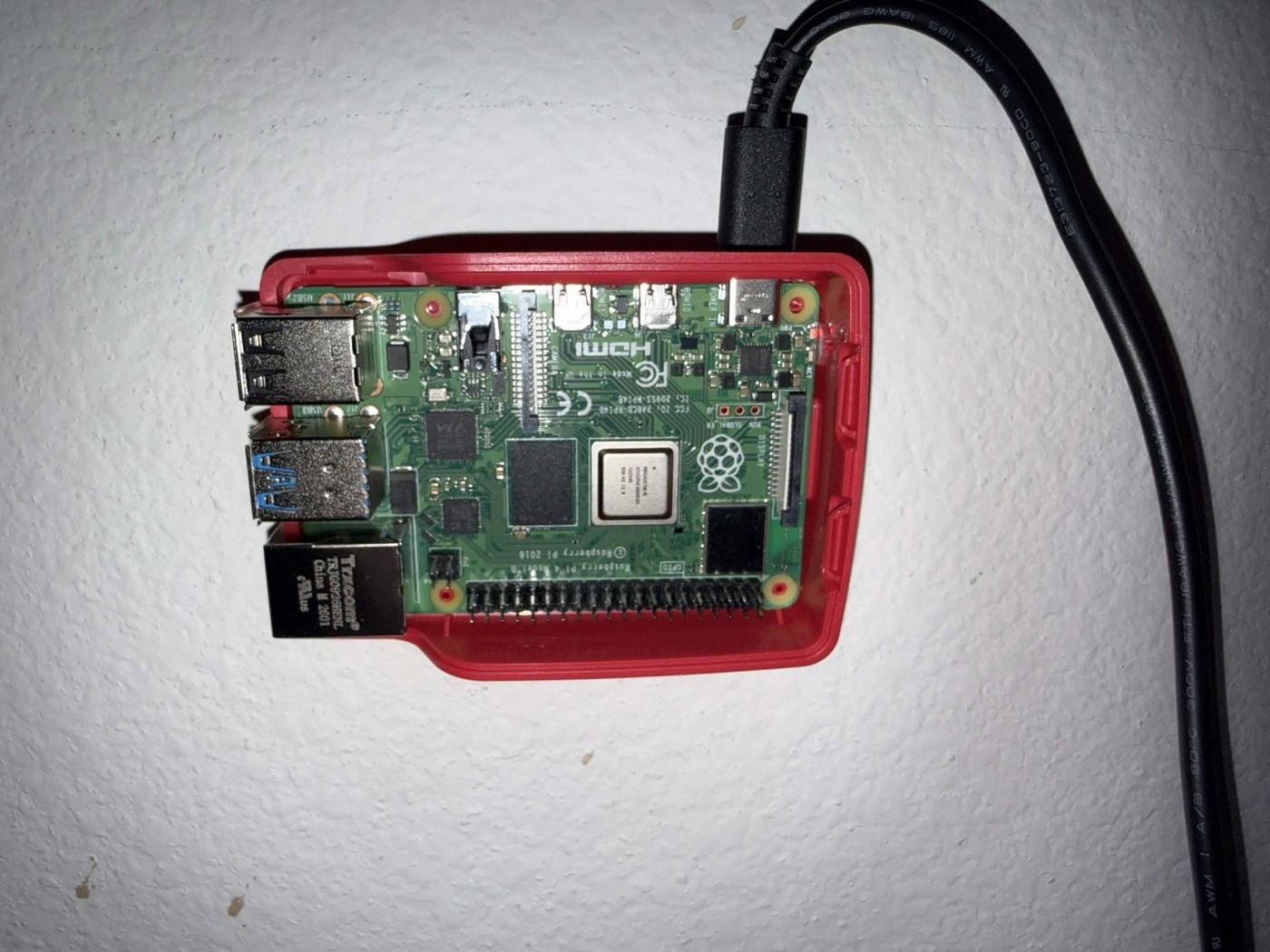
A Raspberry Pi 4 Model B (2GB), the official USB-C power supply, the official case, and a high-endurance 32GB microSD card, chosen for the continuous 24/7 write workload a standard card is not built for. All parts, no subscription, about $75 total.
How It Works
Internal addressing runs on a private 10.0.0.0/24 subnet: the Pi at 10.0.0.1, the desktop pinned to 10.0.0.2, the MacBook pinned to 10.0.0.3. Clients use a split tunnel, with AllowedIPs scoped to that subnet instead of 0.0.0.0/0, so only home-network traffic crosses the tunnel and everything else on the MacBook stays on its normal connection.
| Role | Device | What it does |
|---|---|---|
| 01 · Remote | MacBook, Anywhere | Runs the WireGuard app, Moonlight as the main streaming client, and Microsoft's Windows App for RDP as the fallback. Joins the tunnel over its normal internet connection, wherever that happens to be, cellular included. |
| 02 · Edge | Home Router | A Spectrum-managed gateway with UDP 51820 forwarded to the Pi and a static DHCP reservation, so the forwarded port always points at the right device. Configured through the My Spectrum app, since there is no browser admin panel. |
| 03 · Server | Raspberry Pi | Runs the WireGuard server and a cron job that keeps DuckDNS pointed at the home network's current public IP. It is the only device in the whole setup with a forwarded port. |
| 04 · Host | Desktop PC | A WireGuard client reached over Wi-Fi on the home network. Runs Sunshine to stream its primary display to Moonlight, and still hosts RDP as the fallback; it was upgraded to Windows 11 Pro specifically to support RDP hosting. |
From Remote Desktop to Sunshine + Moonlight
RDP through the tunnel worked, but over a cellular hotspot it felt a little laggy. Sunshine (the host, on the desktop) and Moonlight (the client, on the MacBook) are a game streaming pair that encodes the screen as video on the GPU and sends it over UDP. Tested side by side through the same tunnel, Moonlight was much smoother, so it is now the default way in, with RDP kept as the fallback.
| Aspect | RDP (Windows App) | Moonlight |
|---|---|---|
| Transport | TCP (the client picked TCP even though the host allows UDP) | UDP |
| Picture | A desktop session, with no frame rate readout | HEVC at 1920x1080 and 60 fps, encoded on the GPU (NVENC) |
| Latency | 44 to 45ms round trip | 55 to 71ms network, 3ms decode, under 2ms on the host |
| Frame delivery | No readout | 59.9 to 61.8 fps with 0.00% dropped frames over a six minute run |
| Feel | A little laggy | Felt good; on the home network, way smoother than RDP |
| Piece | Detail |
|---|---|
| Tuning | Turning V-Sync off in Moonlight removed about 24ms of frame queue delay and the dropped frames it caused. A 20 Mbps cap held steady on the hotspot (real use averaged 13.4 Mbit/s); higher caps were too jittery. HEVC instead of AV1, because the MacBook Air's M2 has no hardware AV1 decode. |
| Exposure | Sunshine's installer adds firewall rules that accept connections from any address. Those were left out and replaced with two rules scoped to the home LAN and the tunnel subnet. Its web admin page has no rule at all, so it only opens on the desktop itself. Nothing is forwarded on the router; WireGuard is still the only way in from outside. |
| Why RDP Stays | Moonlight streams one display. RDP still gives the full three monitor desktop, so it stays set up as the fallback. |
Status Page & Remote Controls
The first status page ran on the Pi itself, which meant it went dark exactly when it was needed: during a Pi outage. It was rebuilt off the Pi as a small serverless page.
| Piece | What it does |
|---|---|
| Status Page | An AWS Lambda (Function URL, no API Gateway) with DynamoDB, at $0 a month. The Pi pushes a heartbeat every 60 seconds with WireGuard peer status, uptime, memory, and load, so nothing ever has to connect in to the Pi. |
| Remote Restart | A token gated Restart Pi button queues a graceful restart that the Pi runs on its next check-in. It can't help if the Pi is fully down. |
| Wake-on-LAN | Retired after a motherboard swap: the new board's Wi-Fi chip has no wake support in Windows, and the system only supports S3 sleep. Ethernet would work, but there is no cable run, so the desktop has to be awake to connect. |
| Hardening | SSH uses a dedicated key pair with password auth off, ufw denies all incoming traffic except the WireGuard port (SSH is limited to the LAN and the tunnel), and unattended-upgrades keeps the Pi patched. |
Tools + Build
Raspberry Pi 4 Model BRaspberry Pi OS LiteWireGuardCurve25519ChaCha20-Poly1305DuckDNScronUDP 51820Static DHCP ReservationSplit-Tunnel VPNWindows 11 ProSunshineMoonlightHEVC / NVENCRemote Desktop ProtocolMicrosoft Windows AppSpectrum GatewayAWS LambdaDynamoDBPythonsystemdufwWake-on-LANOpenSSH
Decisions Worth Calling Out
Self-Hosted Over Tailscale or a VPS. Chose to run the WireGuard server itself rather than a managed mesh network or a rented VPS, to keep ongoing cost near zero and turn the build into a hands-on networking project. Accepted trade-off: more setup effort and ongoing maintenance, patching and monitoring, than a managed service would require.
Pi 4 Over the Cheaper Pi Zero 2 W. The Zero 2 W is Wi-Fi only with no ethernet port, a downside even before placement is factored in. The Pi 4 costs more but leaves headroom for later additions, like a status dashboard or automation scripts, with no hardware change.
Wi-Fi Over Ethernet for the Pi. The Pi cannot physically sit near the router, so it connects over Wi-Fi. WireGuard does not care about the underlying transport, and tunnel traffic sits far below Wi-Fi's bandwidth ceiling, a minor reliability trade for real placement flexibility.
High-Endurance microSD Over a USB SSD. A continuous 24/7 write workload wears out a standard microSD card. A high-endurance card, the same class used in dash cams and security cameras, is built for exactly that. Actual storage needs are a few gigabytes, well under what an SSD's capacity is priced for.
Split Tunnel, Not Full Tunnel. AllowedIPs is scoped to the tunnel's internal subnet rather than 0.0.0.0/0, so only traffic bound for the home network crosses the tunnel and the MacBook's normal internet use is untouched.
Skipped Raspberry Pi Connect. Left off Raspberry Pi's own cloud-relay remote access option. It is redundant with the WireGuard setup already built and reintroduces the managed-service dependency this project was built to avoid. SSH covers admin access, WireGuard covers everything else.
Off the Pi, Pushed Not Polled. The first status page was bound to the Pi's WireGuard address (10.0.0.1:8080), so the tunnel was its access gate. That also meant it went dark during the very outages it was meant to report. Moving it to a Lambda that the Pi pushes a heartbeat to keeps it up when the Pi is not, and nothing has to connect in to the home network.
Retired Instead of Chased. Wake over Wi-Fi worked on the original board, but only from sleep, and it needed a Windows change plus two BIOS settings the Windows side didn't cover: Resume By PCI-E Device enabled, ErP Ready disabled, since ErP mode cuts standby power to onboard devices and silently kills WOL. After a motherboard swap, the new Wi-Fi chip had no wake support at all. Ethernet would fix it, but with no cable run to the desktop, Wake-on-LAN was retired rather than worked around.
Moonlight by Default, RDP as the Fallback. Moonlight's UDP video stream was much smoother than RDP over the same tunnel, so it became the default. It only streams one display, though, and RDP still gives the full three monitor desktop, so RDP stays set up instead of being removed.
Notable Challenges
Problems worth documenting because none of them produced a normal error message.
A Tunnel That Looked Active and Wasn't
Symptom: The first real test, the desktop connecting through the public DuckDNS hostname, failed silently: WireGuard showed the tunnel as active, bytes sent but zero received, no handshake, and no error anywhere.
Fix: two endpoints, one per role. Diagnosed as NAT hairpinning: the router will not loop traffic back inside when it is addressed to its own public IP from a device already on the home network. Confirmed by pointing the desktop's endpoint at the Pi's LAN IP instead, which handshook instantly, then made that permanent. The desktop, which never leaves home, uses the Pi's LAN IP; the MacBook, which roams, keeps the public DuckDNS hostname.
Windows 11 Home Can't Host RDP
Symptom: With the tunnel verified end-to-end via wg show on the Pi, live handshakes and real traffic counters for both peers, RDP itself still failed. Not a bug: Windows 11 Home does not support hosting a Remote Desktop session at all.
Fix: weighed three fixes, paid for the supported one. Compared a $99 one-time Pro upgrade against RDP Wrapper (free, unofficial, fragile against Windows updates) and VNC (free, works on Home, different client and less WAN-optimized). Took the Pro upgrade to keep the build fully supported. Final proof was the MacBook completing a real RDP session over a cellular hotspot, confirming the full chain end-to-end from an actual outside network.
A Wi-Fi Chip That Failed Silently
Symptom: The tunnel was up and the round trip was a healthy 22 to 28ms, but RDP crawled and test traffic lost more than half its packets. Signal strength and every network counter on the Pi looked clean.
Fix: isolate one segment at a time, then reboot on the signature. MacBook to Pi was fine, but anything the Pi sent collapsed, even straight to the internet with no tunnel involved. The kernel log showed why: a bus timeout between the Pi's processor and its Wi-Fi chip, followed by thousands of driver errors. A reboot restored full speed (Pi to MacBook went from under 1 Mbit/s to 34). A small watchdog now reboots the Pi automatically when that error pattern appears, keyed to the driver errors so a router or ISP outage can never trigger it.
What It Feels Like
| Aspect | Result |
|---|---|
| Latency | 16ms round trip and about 19.8 Mbps available bandwidth from a school network, read straight off the Windows App's connection stats overlay. Comfortably under the 50 to 70ms range where typing and mouse input start to feel laggy. |
| Dev servers | Close to native: hitting a localhost dev server through the tunnel is just a normal HTTP request with the same small overhead. |
| Ceiling | Full-screen RDP smoothness is capped by the home ISP's upload bandwidth, common on cable internet, not by the Pi or by WireGuard itself. |
What It Actually Cost
| Category | Cost | Detail |
|---|---|---|
| Hardware | $75, one time | Pi 4 Model B (2GB), official USB-C power supply, official case, and a high-endurance 32GB microSD card. |
| Licensing | $99, one time | Windows 11 Home to Pro upgrade, needed only because RDP hosting requires it. |
| Ongoing | $0 a month | DuckDNS, WireGuard, Sunshine, and Moonlight are all free, and the status page runs at $0 a month on AWS. The only recurring cost is maintenance time, not money, versus Tailscale's free tier or a low-cost VPS billed every month. |
What's Next
- Hardening write-up. SSH key-only auth, ufw, and unattended-upgrades, plus the Raspberry Pi OS defaults that quietly undid two of them (cloud-init turning password auth back on at boot, logs kept in memory only), documented as deliberate security decisions rather than just setup steps.
- Infrastructure as code. A script or Ansible playbook to provision the whole build reproducibly, instead of repeating the manual setup by hand.